> ## Documentation Index
> Fetch the complete documentation index at: https://docs.chaintable.com/llms.txt
> Use this file to discover all available pages before exploring further.
# SQL queries
> Create, run, and save SQL queries, inspect results, and execute them again.
Write queries using Trino SQL syntax to filter, join, and aggregate existing data.
## Choose a table
Find a table through [Discover](https://chaintable.com/discover), open its details and relevant subtable, and inspect fields, sample data, and the full table ID.
Use the full table ID in `FROM`. For example, `token.token_transfer.eth` is the Ethereum token-transfer table in the `token` Space. Do not use only the displayed name `token_transfer.eth`.
## Create and execute
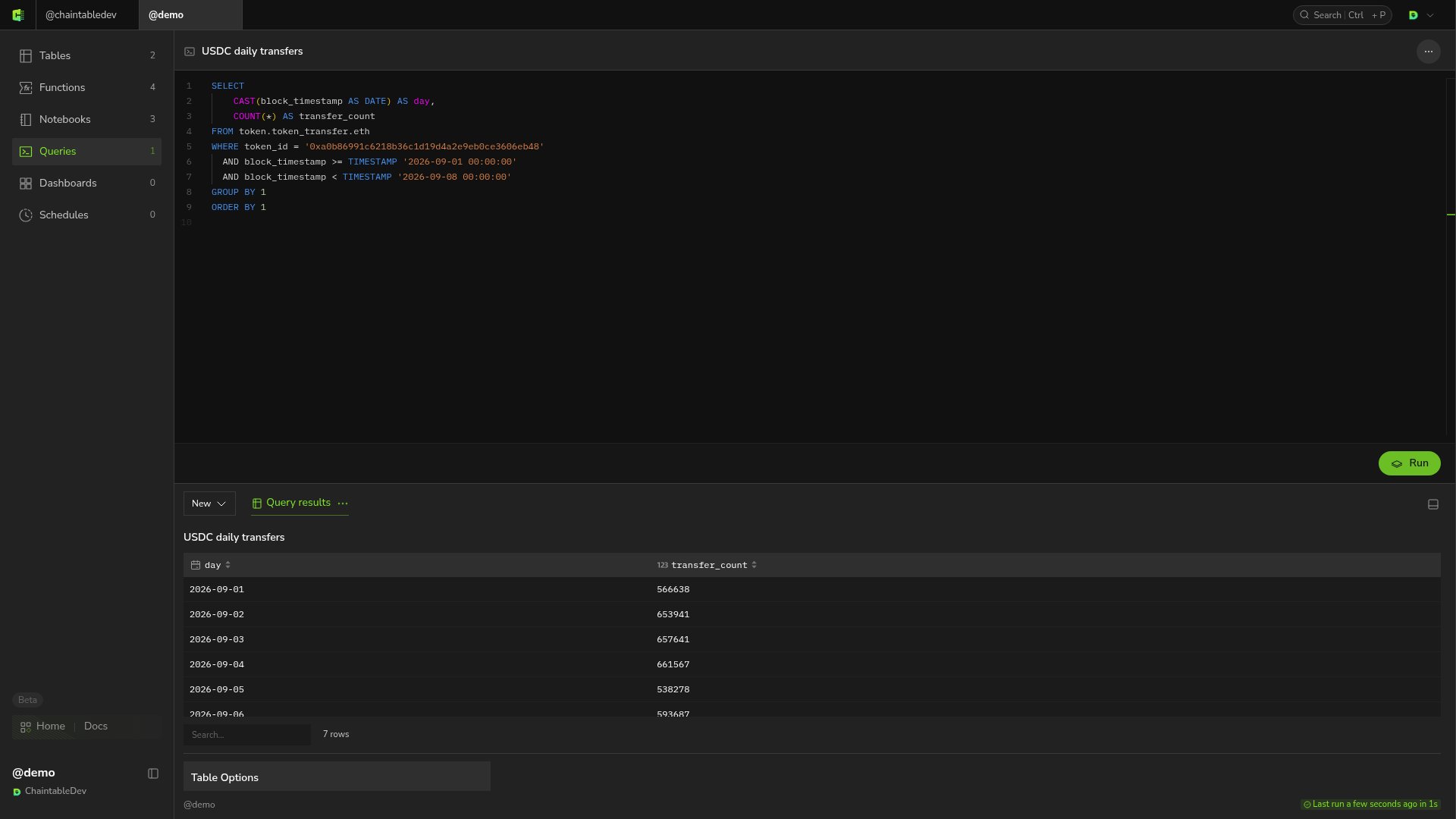
1. Open your Space, select **Queries**, and click **+** in the upper right.
2. Enter a query name and click **Save and open**.
3. Enter SQL in the editor and click **Run**.
4. Wait for completion, then inspect columns, rows, and row count in **Query results**.
You can use the SQL from [Query token daily transfers](/quickstart/use/daily-token-transfers) to return `day` and `transfer_count`.
 ## Save and rerun
Edits display **unsaved changes**. Click **Review** to inspect them and **Save** to save SQL.
Reopen a saved query from **Queries** to view its last result. Click **Run** to execute it again and update the result.
**Last run** at the bottom of the results shows the latest execution time and duration.
Continue to [Visualizations and dashboards](/guides/analytics/visualizations-and-dashboards) to chart the result.
## Save and rerun
Edits display **unsaved changes**. Click **Review** to inspect them and **Save** to save SQL.
Reopen a saved query from **Queries** to view its last result. Click **Run** to execute it again and update the result.
**Last run** at the bottom of the results shows the latest execution time and duration.
Continue to [Visualizations and dashboards](/guides/analytics/visualizations-and-dashboards) to chart the result.