> ## Documentation Index
> Fetch the complete documentation index at: https://docs.chaintable.com/llms.txt
> Use this file to discover all available pages before exploring further.
# Advanced features
> Subscribe to block events, submit custom BlockX tasks, and read account runtime variables.
Combine BlockDB and BlockX in a Notebook when you need control over triggers, task inputs, or result handling.
## Subscribe to block events
`Subscribe` accepts table IDs, and `listen()` yields `(table_id, block)` continuously. This example subscribes to the Ethereum event table and exits after one new block. It also stops after 30 seconds without an event, making it useful for checking connectivity.
```python theme={null}
from threading import Timer
from blockdb import Subscribe
sub = Subscribe(tables=['chain.event.eth'])
timer = Timer(30, sub.close)
timer.start()
try:
for table_id, block in sub.listen():
print(table_id, block.id, block.height, block.timestamp)
break
finally:
sub.close()
timer.cancel()
```
`block` provides the block ID, height, and timestamp.
Subscriptions consume new events and do not replace a full historical backfill. For a long-running listener, remove the timer and `break`, then follow [Create a continuous schedule](/guides/notebooks/scheduling#create-a-continuous-schedule).
## Configure task inputs and results
Follow [Create a Function](/guides/functions/create) to create and save `demo.usdc_amount`. Submit two sets of positional arguments from a Notebook:
```python theme={null}
from blockx import InputsCallConfig, ReturnValueHandler, TaskBuilder
config = InputsCallConfig(
func='demo.usdc_amount',
callList=[[1500000], [2000000]],
)
result = TaskBuilder.build(config, ReturnValueHandler()).submit(timeout=30)
if not result.task_result.success:
raise RuntimeError(result.error)
print(sorted(result.handler_result))
```
The output is `[1.5, 2.0]`. Each sublist in `callList` produces one function call. `ReturnValueHandler` collects values without writing a table. Results are not guaranteed to follow input order; return a business ID with each result when you need to associate it with its input.
Choose a result handler for the destination:
| Handler | Purpose |
| ---------------------------------------------------- | --------------------------------------------------------- |
| `ReturnValueHandler()` | Return computation results to the Notebook |
| `NormalTableWriteHandler(targetTable=...)` | Write a Normal Table |
| `TimeTableWriteHandler(targetTable=...)` | Write time points containing `id`, `time_at`, and `value` |
| `BlockTableWriteHandler(targetTable=..., block=...)` | Write one block's results to a block table |
## Read runtime variables
1. Switch to the Notebook's owning account and open **Variables** in the account menu.
2. Click **New Variable**, enter name `DOCS_NETWORK` and value `eth`.
3. Click **Add variable**, then read it in the Notebook:
```python theme={null}
from chaintable import variables
network = variables.get('DOCS_NETWORK', 'eth')
print(network)
```
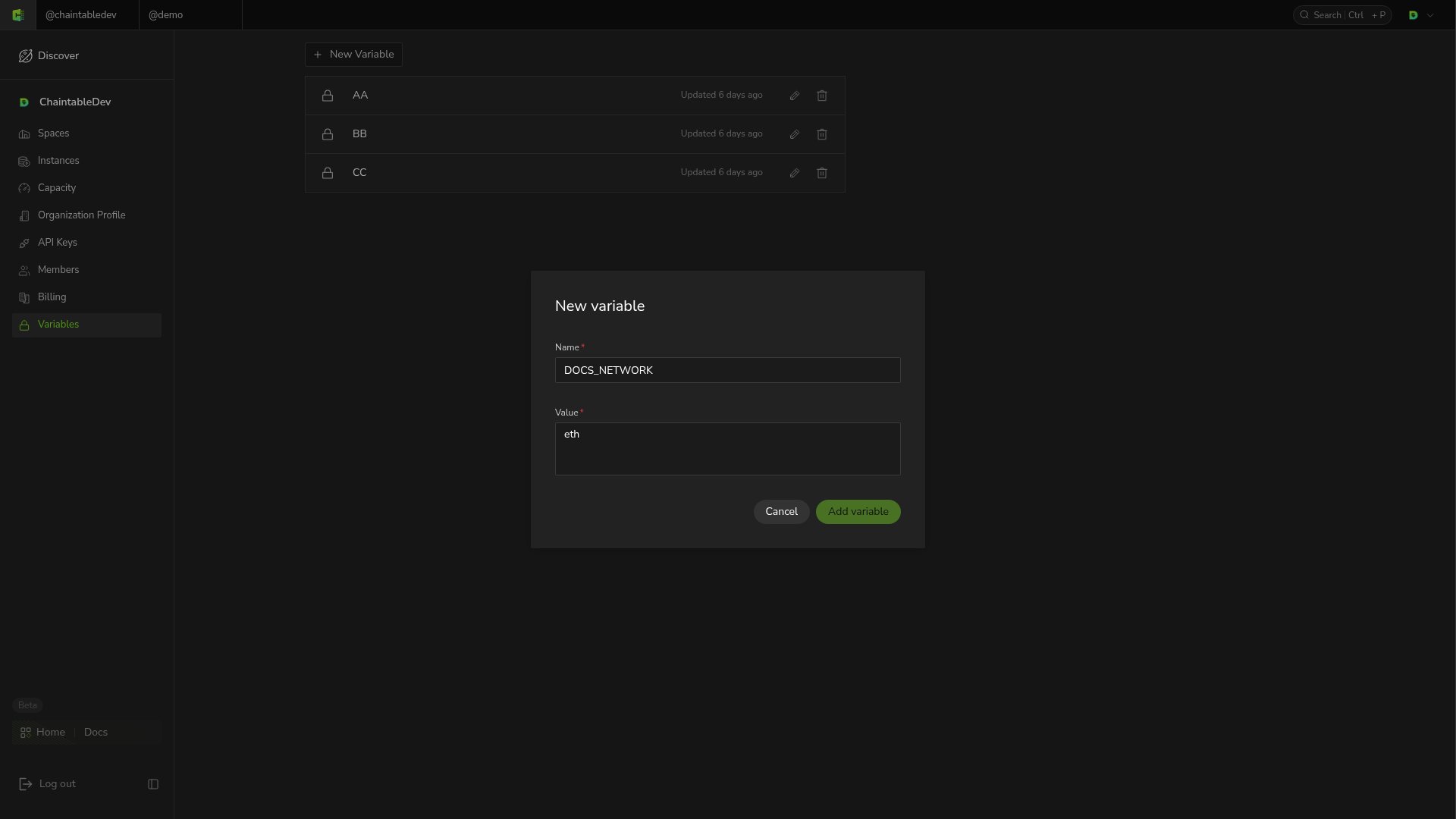 Variables belong to an account; the runtime determines which account is accessible. If the name does not exist, the second argument supplies the default value. Omitting the default returns `None`.
Do not print variables containing secrets to logs.
Variables belong to an account; the runtime determines which account is accessible. If the name does not exist, the second argument supplies the default value. Omitting the default returns `None`.
Do not print variables containing secrets to logs.