> ## Documentation Index
> Fetch the complete documentation index at: https://docs.chaintable.com/llms.txt
> Use this file to discover all available pages before exploring further.
# Manage runs
> Set parameters and compute resources, manage Notebook instances, and inspect output and logs.
Open a saved [Notebook](/guides/notebooks/create) and configure the run at the bottom of the editor.
## Set parameters
Hover over the parameter area and click **+**. Enter **Parameter name**, select a type, and click **Save**. Notebook run parameters are strings; for example, add `raw_amount` and enter `1500000`.
The parameter name must match what the script reads:
```python theme={null}
from chaintable import arguments
args = arguments.get_arguments()
raw_amount = int(args.get('raw_amount', '1500000'))
print(raw_amount / 10 ** 6)
```
Move focus out of the input after entering a value, then click **Save** at the top to save Notebook changes. The run uses the current input values.
## Choose compute resources
Use the selector to the left of **Run** to choose CPU and memory for the instance. A basic script can start with **0.25 vCPU / 1 GB**.
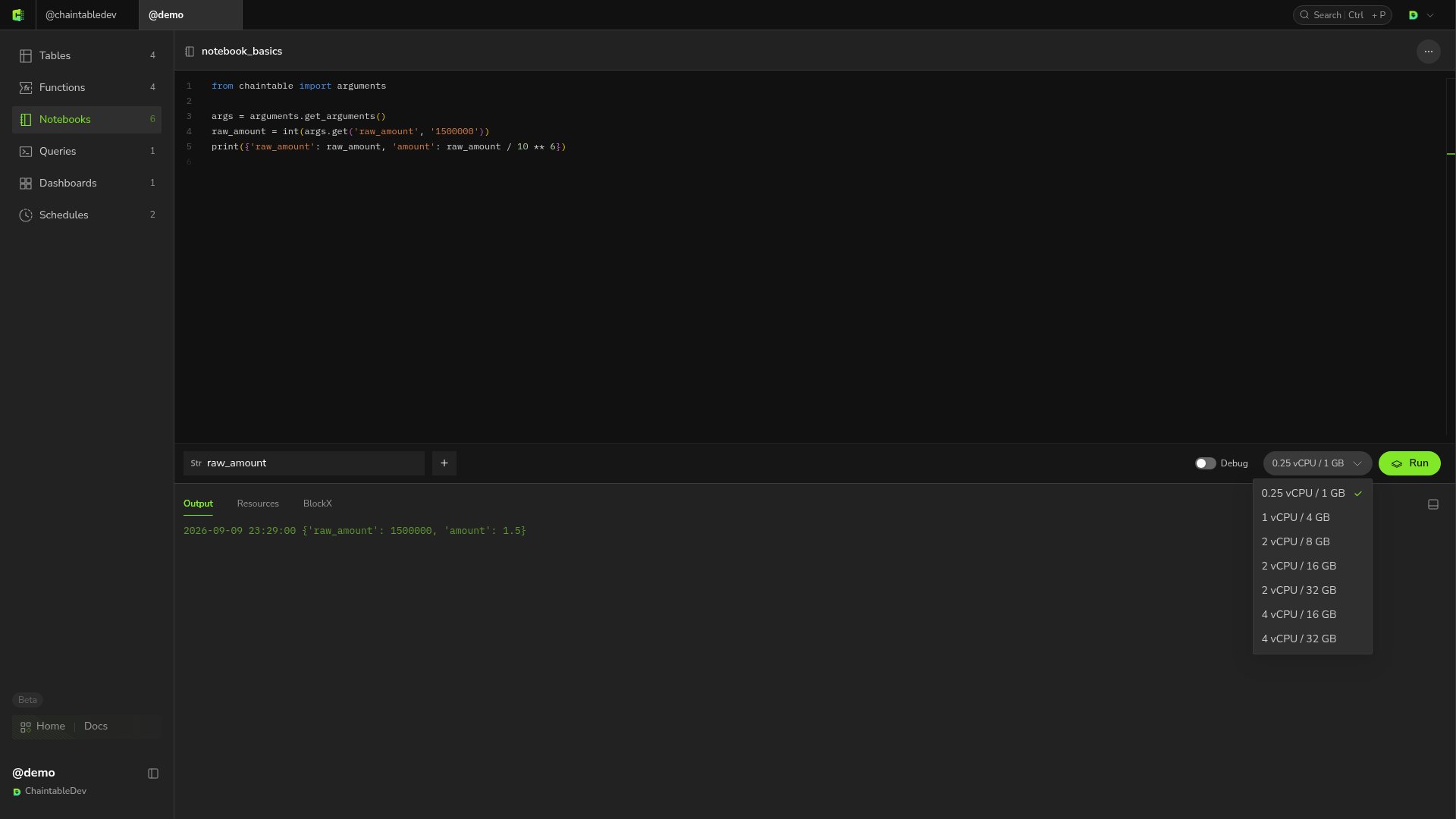 Running instances use the account's Notebook resource quota.
## Start and stop
Click **Run** to start an instance. While running, the button becomes **Cancel**, and **Output**, **Resources**, **BlockX**, and **Instance detail** appear below.
* **Output** shows `print()` output and exceptions.
* **Resources** shows CPU and memory usage.
* **BlockX** shows computation initiated by the script.
* **Instance detail** opens configuration, status, and logs for this run.
Click **Cancel** to stop the current instance. After correcting code or inputs, clicking **Run** creates a new instance.
## Switch to background execution
Foreground execution depends on the page remaining active. Before leaving, click **Switch to Background** in the run panel. You can then find the instance under the account's **Instances** page.
Running instances use the account's Notebook resource quota.
## Start and stop
Click **Run** to start an instance. While running, the button becomes **Cancel**, and **Output**, **Resources**, **BlockX**, and **Instance detail** appear below.
* **Output** shows `print()` output and exceptions.
* **Resources** shows CPU and memory usage.
* **BlockX** shows computation initiated by the script.
* **Instance detail** opens configuration, status, and logs for this run.
Click **Cancel** to stop the current instance. After correcting code or inputs, clicking **Run** creates a new instance.
## Switch to background execution
Foreground execution depends on the page remaining active. Before leaving, click **Switch to Background** in the run panel. You can then find the instance under the account's **Instances** page.
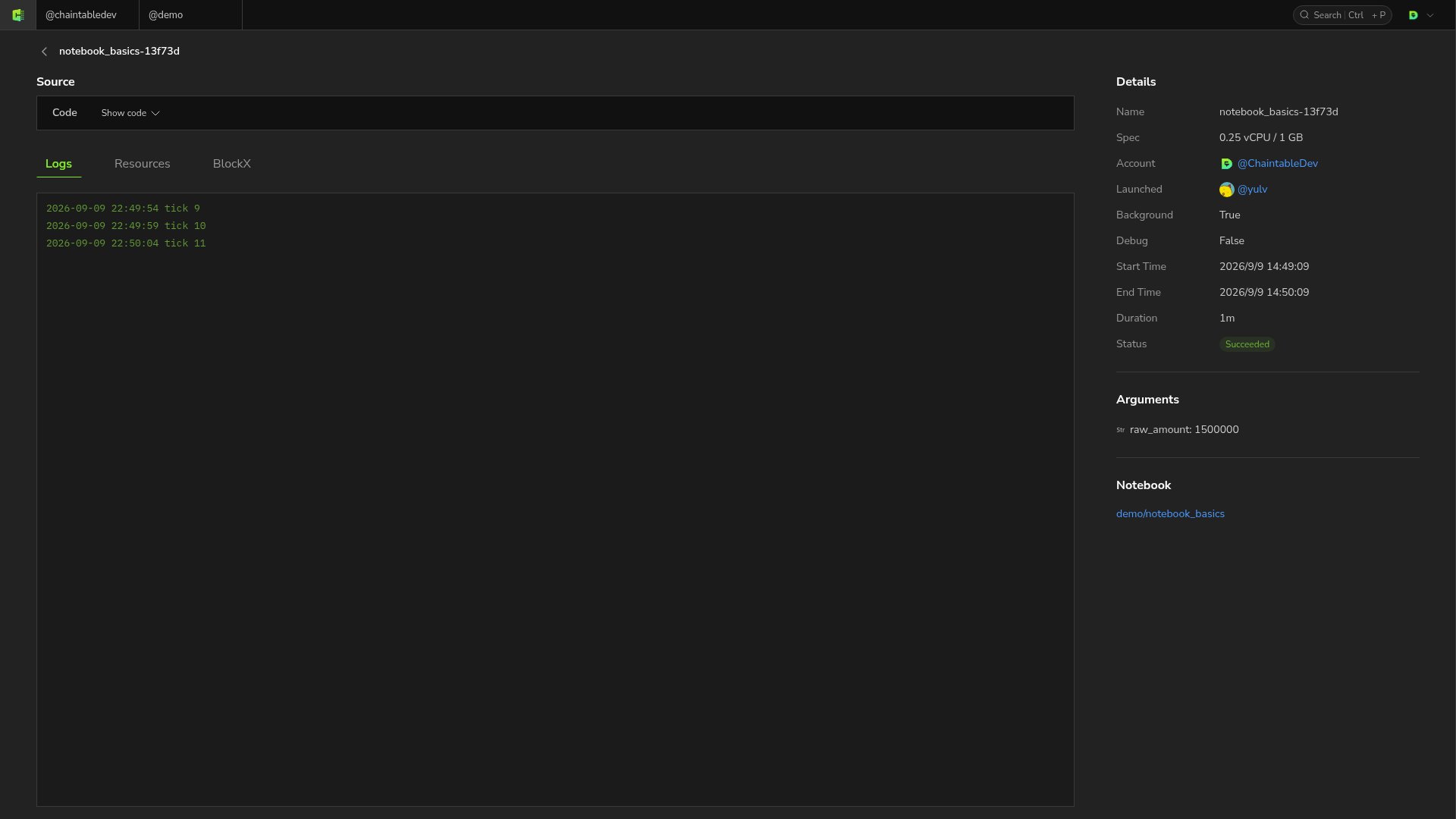 **Background** set to `True` in the instance details confirms background execution. To restart the script automatically after an instance ends, follow [Create a continuous schedule](/guides/notebooks/scheduling#create-a-continuous-schedule).
## Interpret results
Open the instance under the account's **Instances** page. Check **Start Time**, **End Time**, and **Arguments** to identify the run, then inspect output or exceptions in **Logs**. Logs remain available for ended instances. For scheduled runs, **Launched** identifies the schedule.
| Status | Meaning |
| --------- | ------------------------------------------------------------------- |
| Running | The instance is still running |
| Succeeded | The script exited normally |
| Failed | The script or instance failed; inspect logs and termination details |
| Canceled | The instance was canceled or reached its runtime limit |
**Background** set to `True` in the instance details confirms background execution. To restart the script automatically after an instance ends, follow [Create a continuous schedule](/guides/notebooks/scheduling#create-a-continuous-schedule).
## Interpret results
Open the instance under the account's **Instances** page. Check **Start Time**, **End Time**, and **Arguments** to identify the run, then inspect output or exceptions in **Logs**. Logs remain available for ended instances. For scheduled runs, **Launched** identifies the schedule.
| Status | Meaning |
| --------- | ------------------------------------------------------------------- |
| Running | The instance is still running |
| Succeeded | The script exited normally |
| Failed | The script or instance failed; inspect logs and termination details |
| Canceled | The instance was canceled or reached its runtime limit |