> ## Documentation Index
> Fetch the complete documentation index at: https://docs.chaintable.com/llms.txt
> Use this file to discover all available pages before exploring further.
# 创建 Notebook
> 创建和保存 Python 驱动脚本,并运行一个带参数的基础示例。
Notebook 用于运行 Python 驱动脚本,例如发起数据回填、持续更新或批量计算。先进入你有编辑权限的 Space;下面使用 `demo`。
## 新建脚本
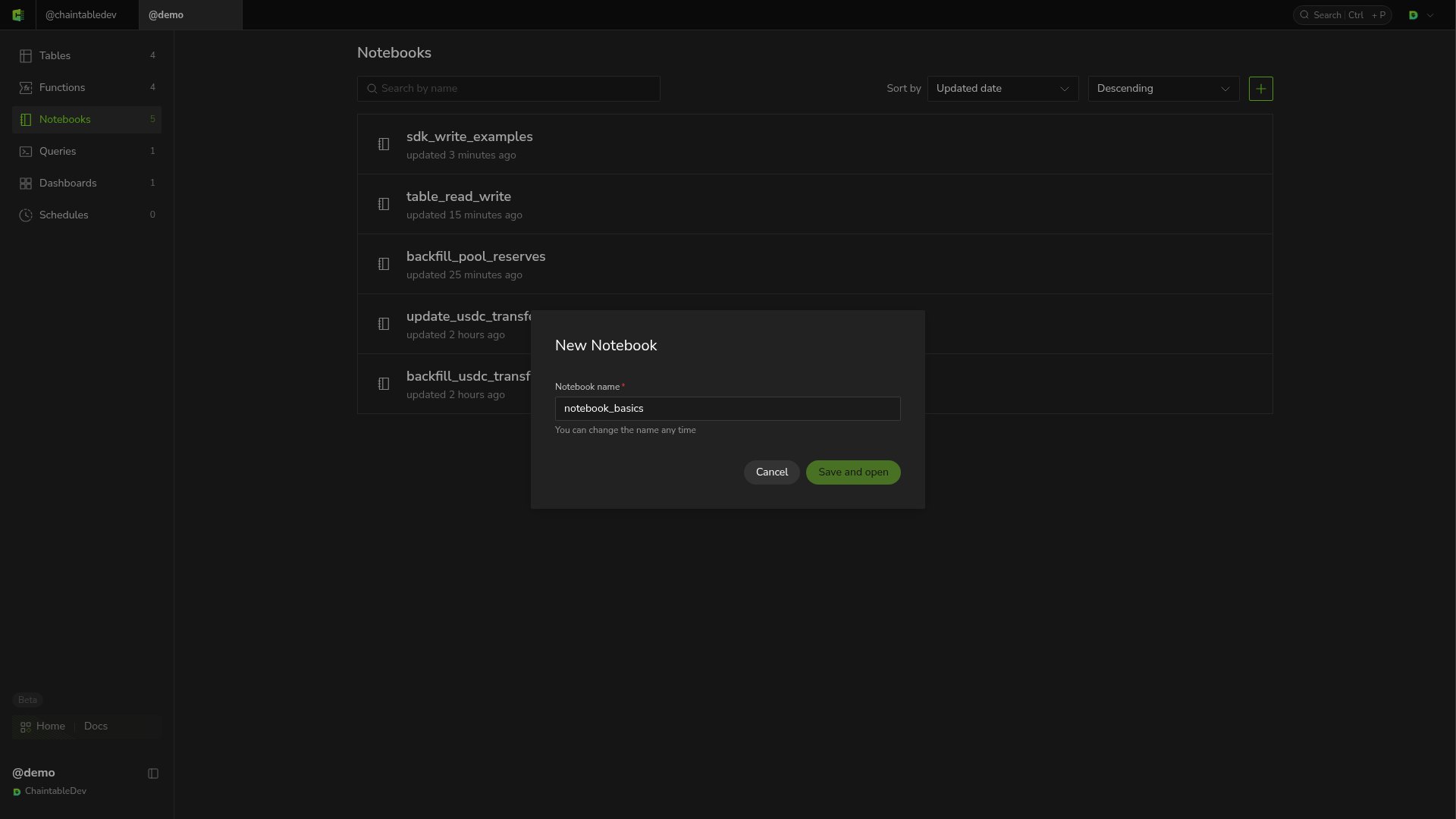
1. 在侧边栏打开 **Notebooks**,点击列表右上角的 **+**。
2. 输入 Notebook 名称 `notebook_basics`。
3. 点击 **Save and open**,进入编辑器。
 ## 编写和保存
在编辑器中输入:
```python theme={null}
from chaintable import arguments
args = arguments.get_arguments()
raw_amount = int(args.get('raw_amount', '1500000'))
print({'raw_amount': raw_amount, 'amount': raw_amount / 10 ** 6})
```
脚本将 USDC 原始数量转换为代币数量。`get_arguments()` 读取运行参数;未提供 `raw_amount` 时使用 `1500000`。参数值为字符串,因此先转为 `int`。
编辑后点击顶部 **Save**。页面不再显示 **unsaved changes**,表示当前修改已保存。
## 运行和查看输出
选择底部计算规格,例如 **0.25 vCPU / 1 GB**,点击 **Run**。脚本执行完成后,**Output** 显示:
```text theme={null}
{'raw_amount': 1500000, 'amount': 1.5}
```
## 编写和保存
在编辑器中输入:
```python theme={null}
from chaintable import arguments
args = arguments.get_arguments()
raw_amount = int(args.get('raw_amount', '1500000'))
print({'raw_amount': raw_amount, 'amount': raw_amount / 10 ** 6})
```
脚本将 USDC 原始数量转换为代币数量。`get_arguments()` 读取运行参数;未提供 `raw_amount` 时使用 `1500000`。参数值为字符串,因此先转为 `int`。
编辑后点击顶部 **Save**。页面不再显示 **unsaved changes**,表示当前修改已保存。
## 运行和查看输出
选择底部计算规格,例如 **0.25 vCPU / 1 GB**,点击 **Run**。脚本执行完成后,**Output** 显示:
```text theme={null}
{'raw_amount': 1500000, 'amount': 1.5}
```
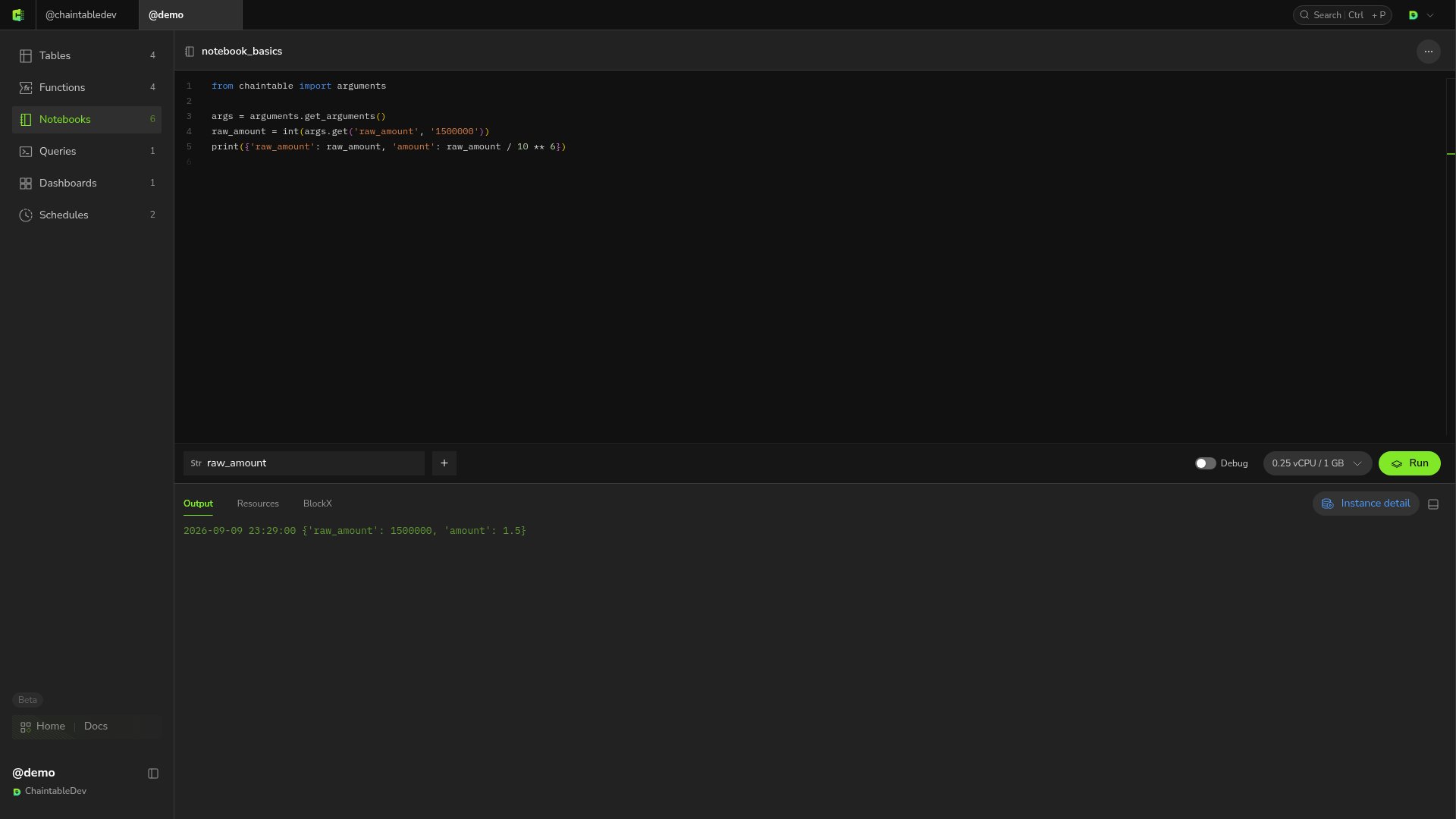 要从页面输入不同的 `raw_amount`,添加同名参数并设置值,操作见[运行管理](/zh/guides/notebooks/manage-runs#设置参数)。