Personal accounts and Organizations
A personal account manages your own resources. A team account is called an Organization in the UI and supports collaboration through member roles. A user can access their personal account and Organizations they have joined. Click the avatar at the top right, select your personal account or an Organization, then open Spaces to choose a workspace. Switching accounts changes which account you inspect for usage, manage API Keys for, and create resources under. Existing resources remain in their original Space.Manage Spaces
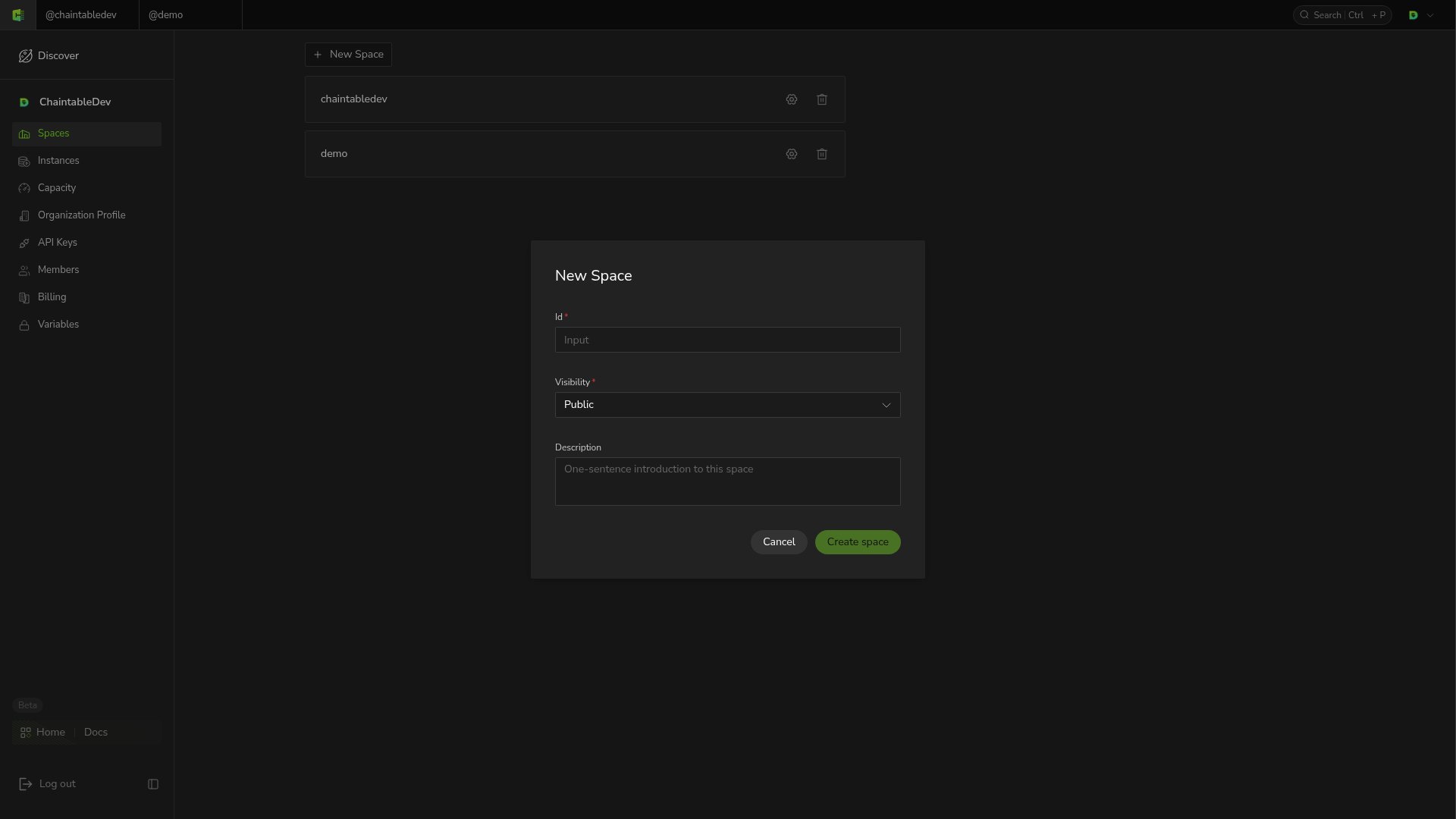
Open Spaces from the account menu to view workspaces. Click New Space and fill in:
Click Create space. Only Public is currently available, so do not treat resources stored here as private.
Members and permissions
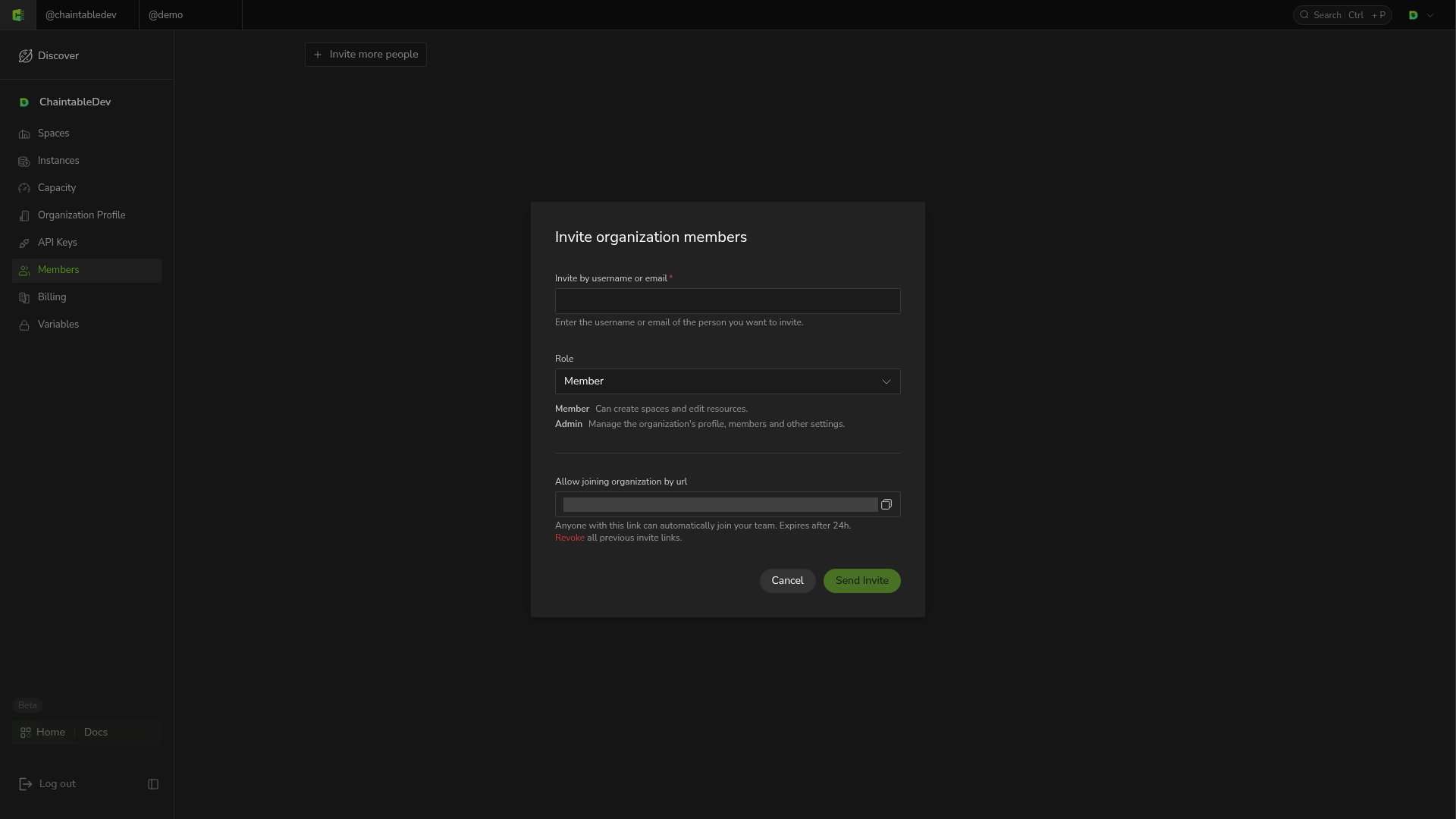
Switch to an Organization and open Members from the account menu. Organization roles have these permissions: